



Ever clicked into an invoice, taken an action, and then refreshed the page yourself to see the change? That’s gone.
Invoices got a completely redesigned UI. Some of the changes are about how it looks. A few are things the app never had: filters, items per page, and comments. The easiest way to show it is side by side.
What’s New in Invoices?
Same app, same invoices, estimates, and clients. What changed is how you move around it and how much you can do without leaving the list.
Here’s the short version:
- Statuses are color-coded, so paid and outstanding read differently at a glance
- Invoices open in a drawer, with every action listed in one place
- Actions from the invoice preview bring you back to Invoices, no manual refresh
- Filters, which didn’t exist before
- A setting for how many invoices show per page, which didn’t exist before either
- Comments on invoices
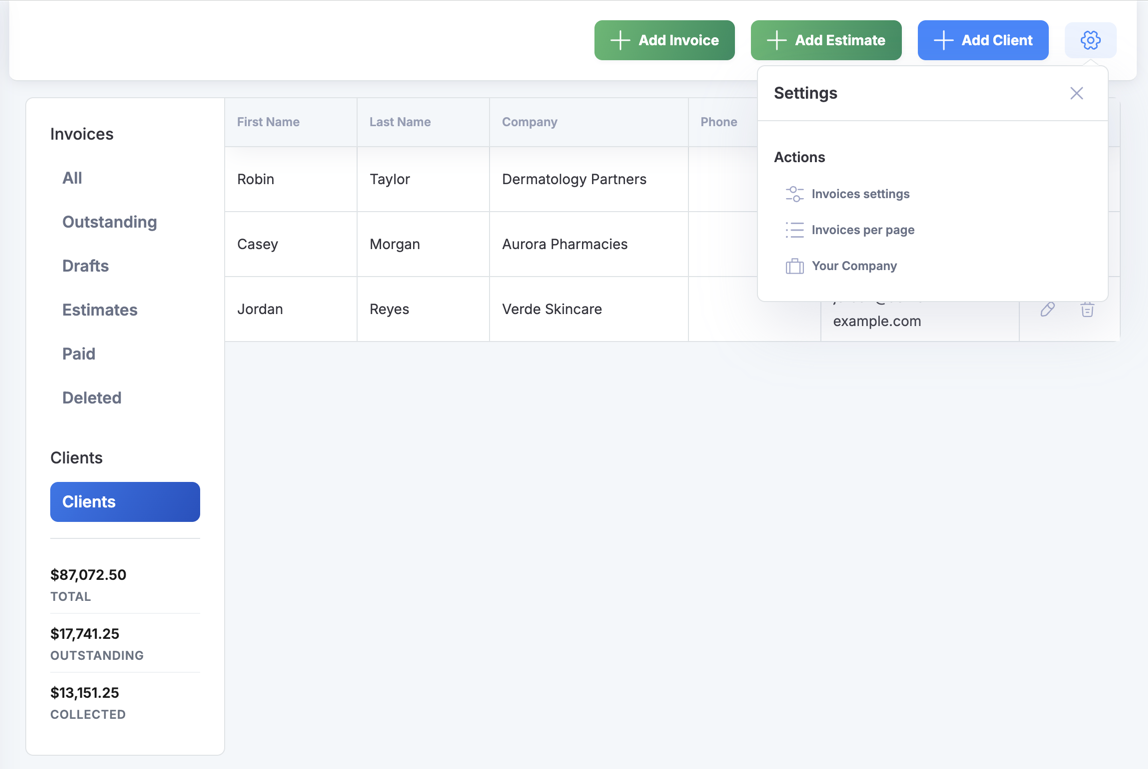
New List: The redesigned Invoices app, with views in the left sidebar and Add Invoice, Add Estimate, and Add Client at the top.
Invoice View Drawer
You can now view invoices in a nice drawer with details and comments!
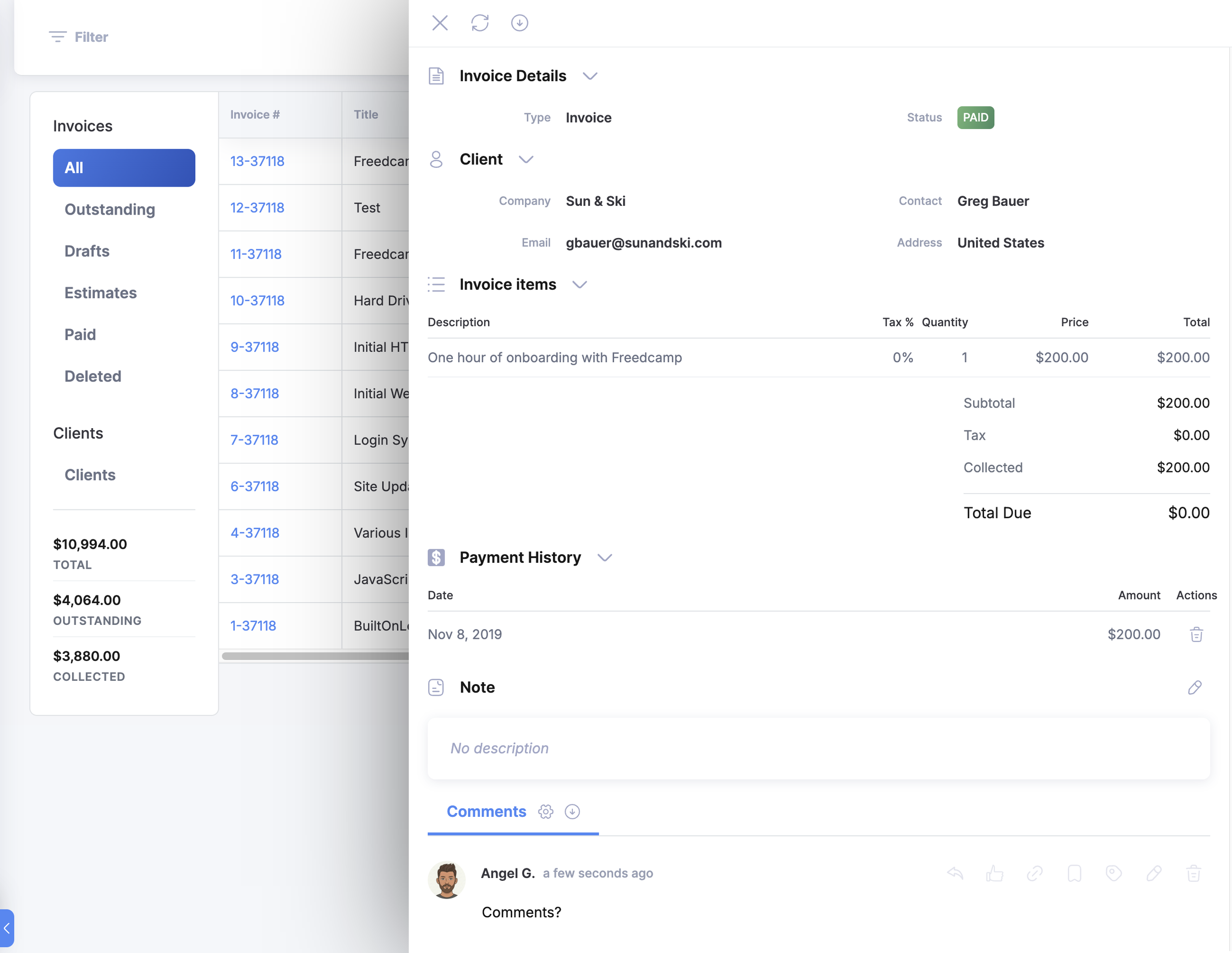
With comments and payment history!
Filters
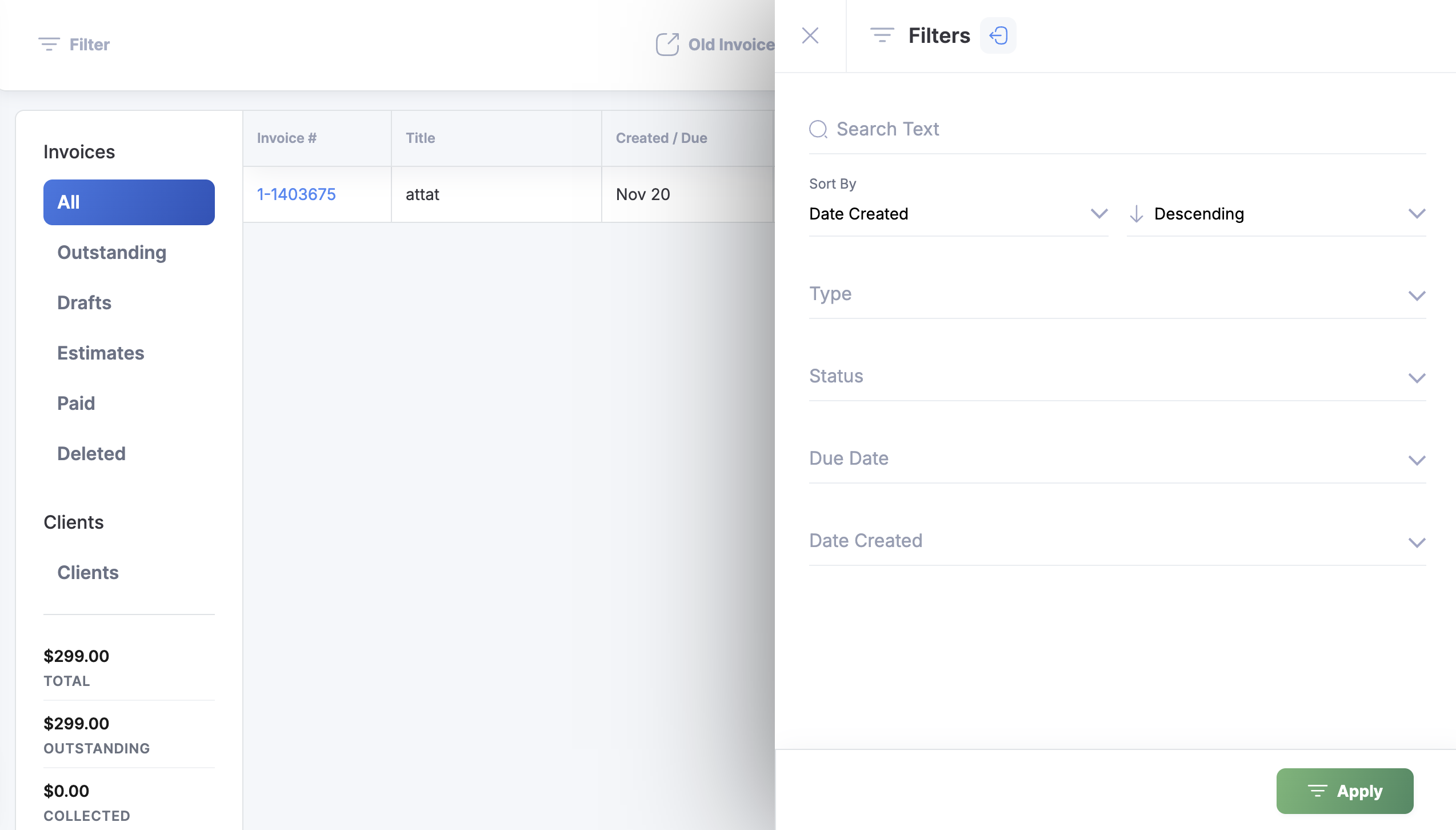
This is the one people will feel most. There were no filters at all before. The old list gave you five sort buttons, so finding one invoice meant sorting and then scrolling. Now you set a filter and work from what’s left.
Click Filter at the top of the list, and a panel opens on the right. Search by text, pick a sort order, and narrow by Type, Status, Due Date, or Date Created. Hit Apply and the list updates.
Filters: The Filters panel opens next to the Invoices list.
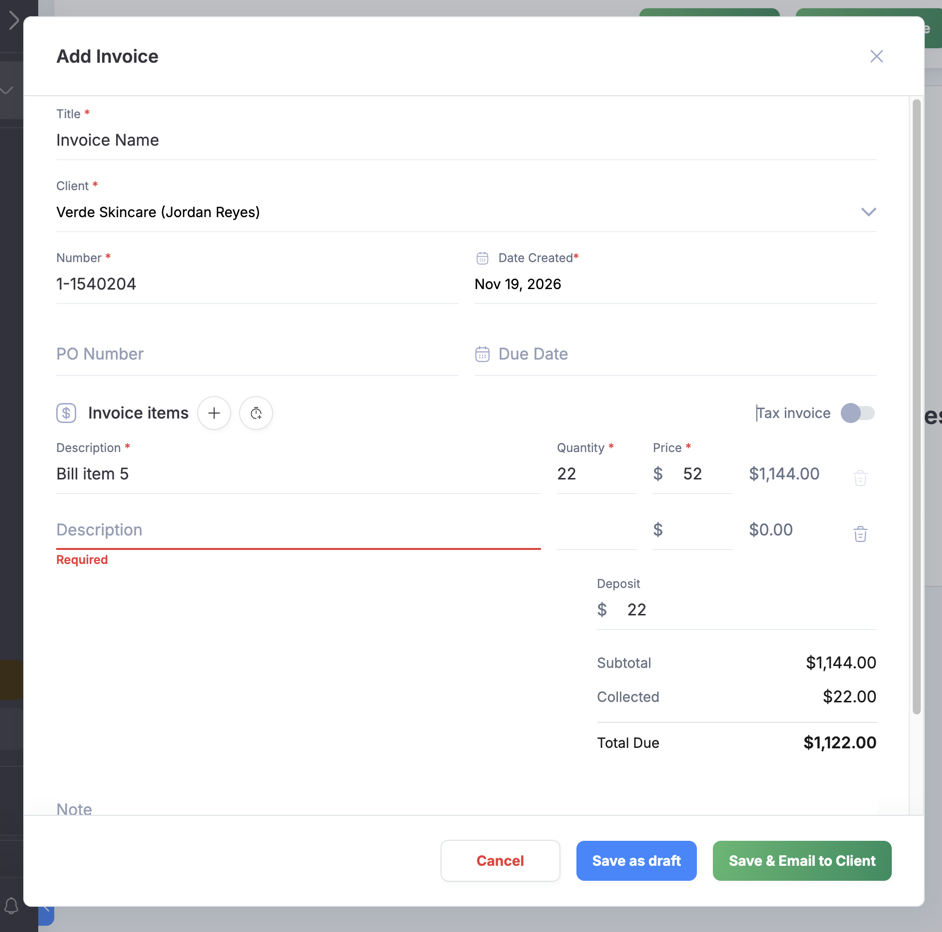
Creating an invoice
New Form: The Add Invoice dialog, with line items, the Tax invoice toggle, and the totals block.
What Changed
- A completely redesigned UI across the Invoices app
- Views in a left sidebar, with your totals always visible
- Color-coded statuses
- Actions from the invoice preview return you to Invoices, no manual refresh
- Filters, which didn’t exist before
- Set how many invoices show per page
- A clearer layout for invoice items and totals
Let Us Know Your Thoughts
If there’s a field you want to filter invoices by and it isn’t there, tell us. Same for the drawer: if you went looking for an action and didn’t find it, we want to hear about it.
Get Started Today!
Open Invoices, click any invoice to see the drawer, then open the cog and set your Invoices per page. Go to Invoices →
Start your next project in two minutes
Freedcamp is free for unlimited projects, tasks and users. No credit card, no trial clock.
Comments
0