



Who creates a new group in your account? Who fixes a group admin, or restores the project somebody deleted by mistake?
If you own the account, the answer to all of those is you. Owning an account and administering it have always been the same job here, and on a team of any real size that makes you the bottleneck.
Account administrators split the two apart.
What Is an Account Administrator?
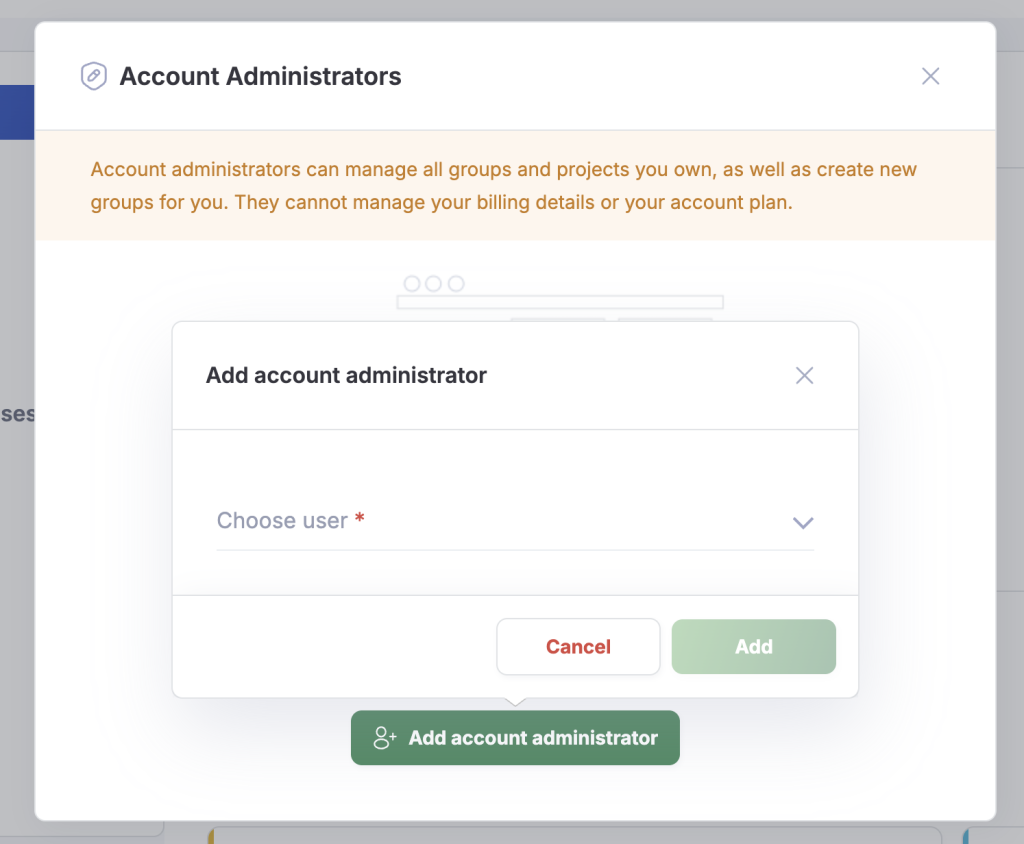
It’s someone you name to do the administrative work on your behalf. The disclaimer they see in the product says it plainly:
Account administrators can manage all groups and projects you own, as well as create new groups for you. They can also manage all settings listed in the Manage System. They cannot manage your billing details or your account plan.
That last sentence is the point of the whole feature. The admin work moves. Your billing doesn’t.
This one is rolling out gradually, so if you don’t see it on your account yet, it’s on the way.
How It Works
Adding and removing an account administrator is staff tooling for now, so ask us and we’ll set it up on your account.
Once someone is added, they’re set up as a group admin on every group you own. Remove them and that comes back off.
Your administrator sees a banner at the top of Manage System naming whose account they’re working in. We deliberately didn’t put it in My Account, because My Account is for your own personal things, and administering somebody else’s account isn’t one of them.
Step 1 Manage System Banner: Where an account administrator is told they’re acting as one, and for whom.
Groups and projects
On a group you own, your administrator gets the group admin field on the group’s edit screen, so they can change who runs it. The Delete Group button is there for them too.
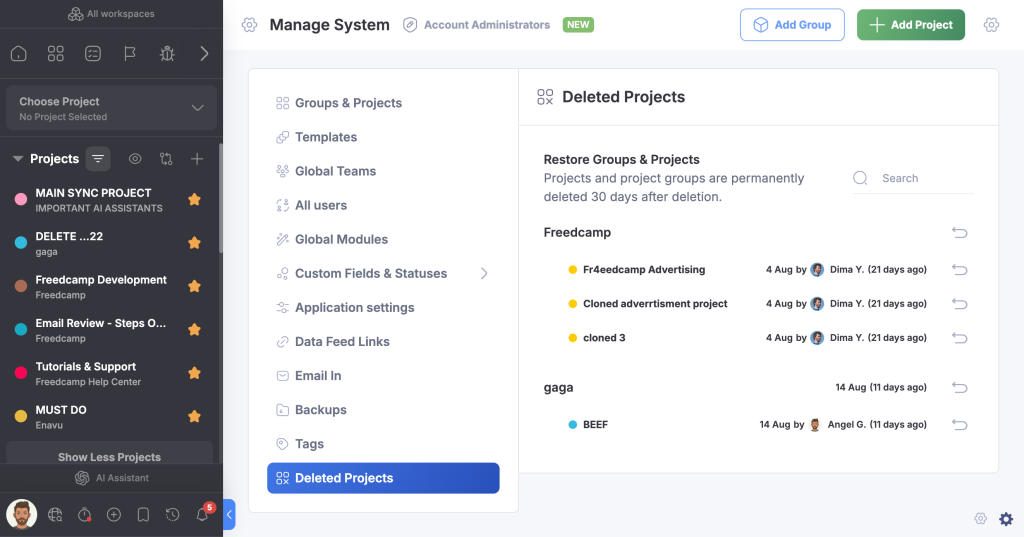
They can also see Deleted Projects, and restore projects and groups from it.
Step 2 Group Editing: A group’s edit screen as an account administrator sees it, with the group admin field and Delete Group available.
Step 3 Deleted Projects: The list of deleted projects, with restore available for projects and groups.
Manage System and Add-Ons
Manage System opens up for them: Global Teams, All users, Global Modules, and application settings.
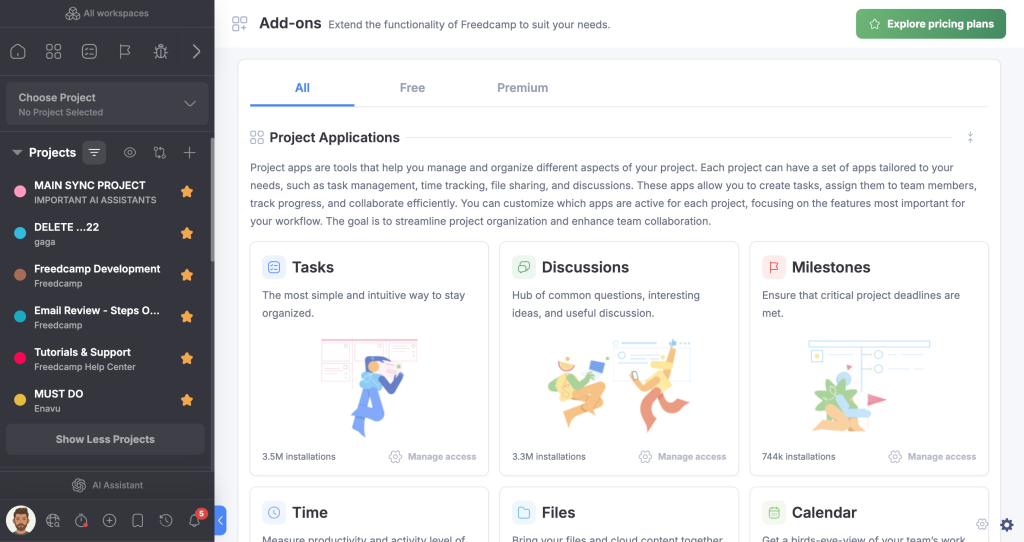
The Add-Ons page carries the same disclaimer, and it shows your apps the way you have them, installed and toggled state included.
They get the change permission system button as well.
Step 4 Add-Ons Disclaimer: The Add-Ons page for an account administrator, with the same disclaimer and your apps reflected correctly.
Templates, invites, and dashboards
Templates work for them the way they work for you. They can create private templates and use custom fields and custom statuses inside them. Building a template from one of your existing projects works too, with the right source project already filled in.
Invites got fixed along the way. Your administrator now sees the same invite form you’d see, not a different variant of it. And you’re no longer suggested as somebody to invite to your own account.
On your dashboards they can add widgets and manage custom columns. Every dashboard operation is available to them.
Half that list is really bug fixes. A new permission tier turns up every place the code quietly assumed only the owner would be there: a form showing the wrong variant, an app toggle ignoring your setting.
Benefits of Account Administrators
- Someone else can create groups for you, delete them, and change group admins
- Deleted Projects is visible to your administrator, and they can restore projects and groups
- Global Teams, All users, Global Modules, and application settings, all reachable in Manage System
- Private templates with custom fields and custom statuses, built without going through you
- Add-Ons reflects your installed apps, not theirs
- Full dashboard control, including widgets and custom columns
- Your billing details and your account plan stay yours
Only a workspace’s owner, or the account administrator in charge of it, can edit that workspace’s settings.
Let Us Know Your Thoughts
If your administrator lands on a screen that still treats them like an ordinary member, tell us which screen it was. Naming the screen is what makes it fixable.
We’d also like to know how many administrators your account actually needs. That’s still an open question on our side, so tell us.
Get Started Today!
Pick the person who should be creating your groups and restoring your projects, and tell us who it is. Adding an administrator is still on our side. Once they’re set up, everything above is waiting for them in Manage System. Go to Freedcamp →
Start your next project in two minutes
Freedcamp is free for unlimited projects, tasks and users. No credit card, no trial clock.
Comments
0