


You go looking for a project you know exists, and it isn’t in the list. Or you set the Tasks Board up exactly how you like it, come back later, and the filters look like they reset themselves.
Both usually come down to the same thing. You’re in a different workspace than you think. Here’s how workspaces work, plus the two rules that trip people up most.
What Are Workspaces?
A workspace is a separate container that belongs to a single owner. Each one holds its own projects and groups, so different areas of work stay cleanly divided.
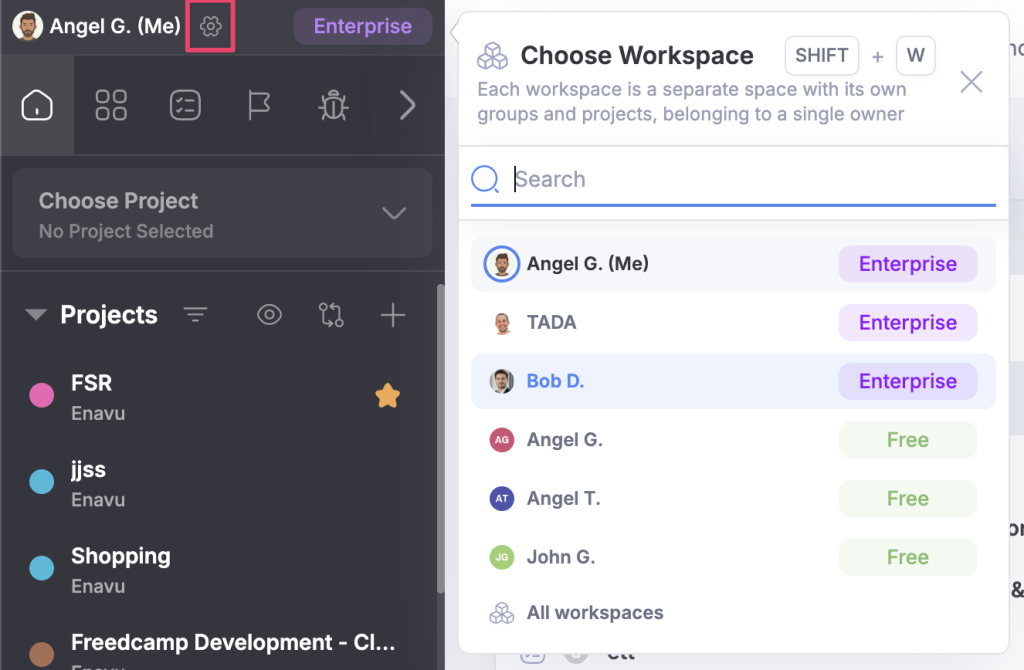
Every group owner has their own workspace, with its own title, logo, and plan level. The plan shows up as a small tag right next to the name. Settings live behind the cog wheel in the sidebar.
Step 1 Sidebar Cog Wheel: Where to click to reach workspace settings. The cog wheel sits in the sidebar next to the workspace name and its plan tag.
Step 2 Workspace Settings: The settings panel for a workspace, where the owner sets the title and logo everyone in that workspace sees.
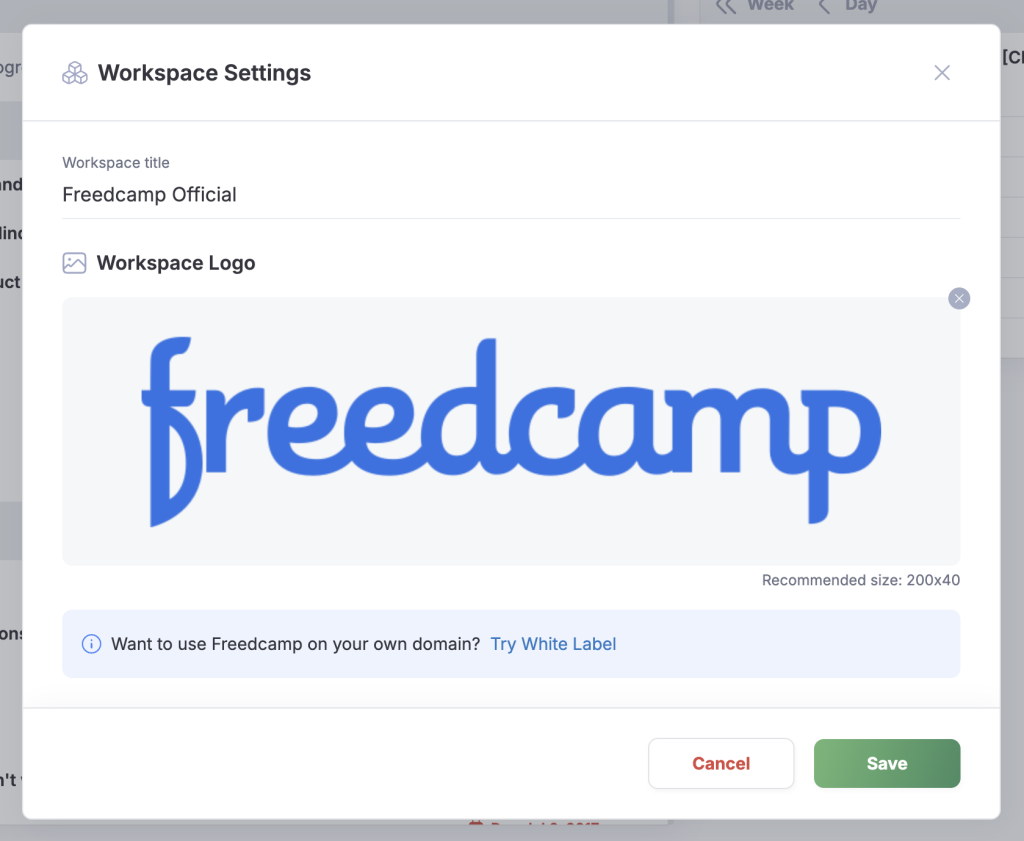
Only the workspace owner, or the account administrator in charge of it, can edit those settings. Everyone else just uses the workspace.
How It Works
The plan comes from the owner
This is the part people misread most often, so here it is plainly. Everything inside a workspace runs on the workspace plan, and the workspace plan is the owner’s plan. Groups, projects, all of it.
So if you belong to your own workspace and to someone else’s, the two can be on different plans. The projects in their workspace run on their plan, not yours. Your plan doesn’t travel with you when you switch.
The tag next to the workspace name always tells you which plan you’re looking at. If something you expect isn’t there, check that tag first.
Switching between workspaces
If you belong to two or more workspaces, a switcher appears so you can jump between them. If you only belong to one, you won’t see a switcher at all. That’s normal, not a bug.
Step 3 Workspace Switcher: The switcher expanded in the sidebar, showing each workspace you belong to with its own logo and plan tag.
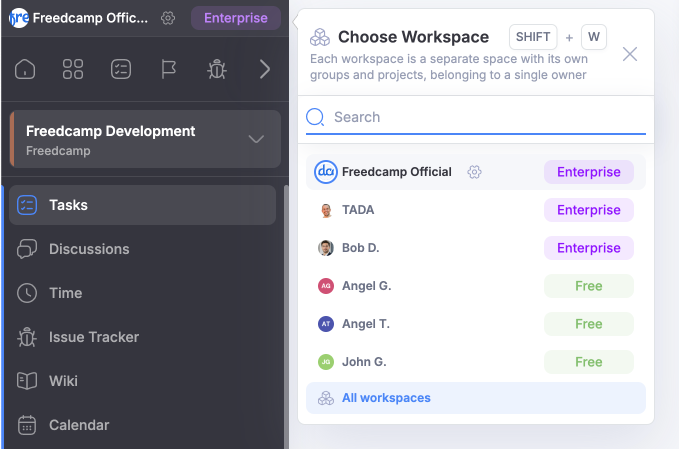
Here’s what happens when you pick a different one:
- Freedcamp checks with the server.
- It clears out the projects, groups, and apps you were looking at.
- It loads the ones that belong to the new workspace.
- If the page you were on belongs to a project or group that isn’t in the new workspace, you land on that workspace’s default page.
- A small toast confirms which workspace you’re in now.
That redirect isn’t an error. It just means the thing you were looking at lives somewhere else.
All Workspaces
There’s also an All Workspaces option. Pick it and you see everything across all of your workspaces at once, instead of one workspace at a time.
Step 4 All Workspaces: Selecting All Workspaces from the switcher, which shows the projects and groups from every workspace you belong to in one view.
Filters are saved per workspace
The second thing people get caught by. Some personal preferences, like saved filters and sort order, are saved per workspace, so what you set up in one doesn’t affect another. That covers the filters on all the board pages: Tasks Board, Projects Board, and the rest.
So when you switch and your filters look like they vanished, they didn’t. They’re still in the workspace you set them in.
That’s the point. A client-work workspace and a personal workspace can have completely different board setups without fighting each other.
Benefits of Workspaces
- Different areas of work stay in separate containers instead of one long list
- Each workspace has its own title and logo, so you can tell at a glance where you are
- The plan tag next to the name tells you which plan everything inside is running on
- Jump between workspaces with the switcher, or see everything at once with All Workspaces
- Filters and sort order are remembered per workspace, so board setups don’t collide
- Owners and account administrators control the settings, everyone else just works
Let Us Know Your Thoughts
If you’ve hit a moment where it wasn’t obvious which workspace you were in, tell us exactly where that happened. Same goes for any preference you expected to be saved per workspace but isn’t. Those are the details we can act on.
Get Started Today!
Open the switcher in your sidebar and look at the plan tag next to each workspace name. Then click the cog wheel on the workspace you own and give it a title and logo you’ll recognize instantly. Go to Freedcamp →
Start your next project in two minutes
Freedcamp is free for unlimited projects, tasks and users. No credit card, no trial clock.
Comments
0