


Quickly see who’s plate is full and who’s ready to take on a new task!
You can now see your team’s load in the Gantt Resource View (beta for our Business and Enterprise customers). It works in both the project Gantt View and within the Task Board. Simply switch to the Gantt view and enable resources view.
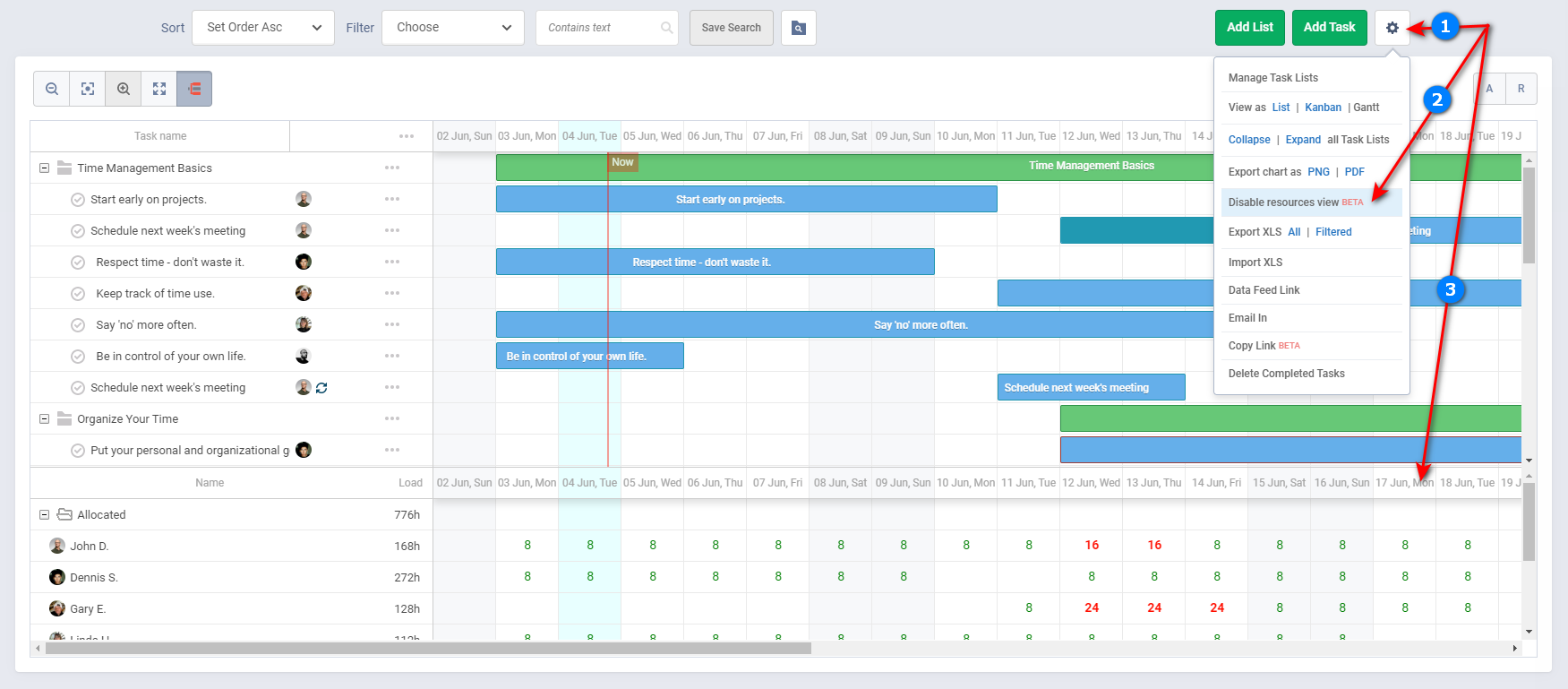
See it in action (please click animation to enlarge).
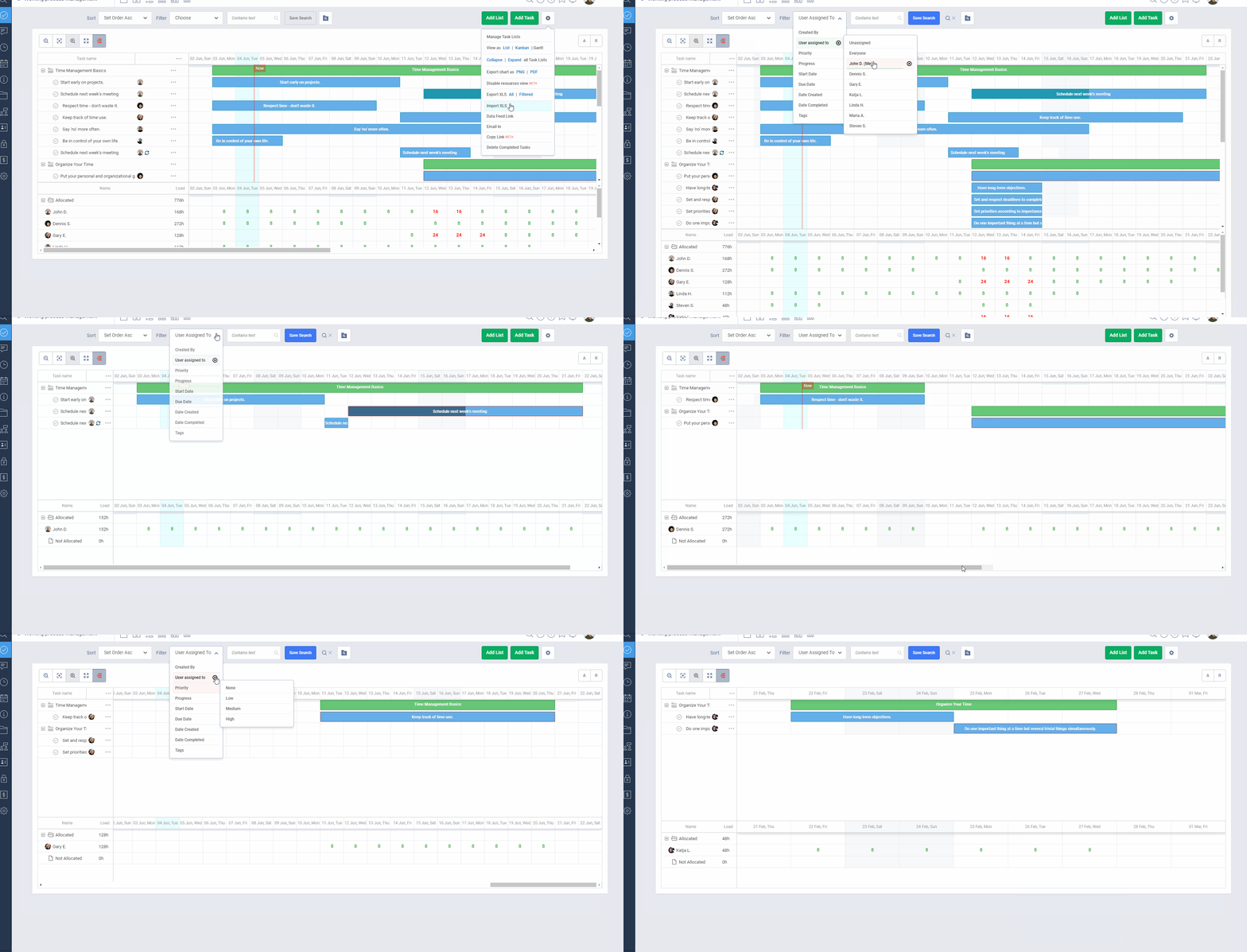
Try our Business and Enterprise plans today to see it in action.
Start your next project in two minutes
Freedcamp is free for unlimited projects, tasks and users. No credit card, no trial clock.
I’m very happy to see that you are starting to implement the long-awaited resource management features. At the moment every task takes 8 hours (a whole workday), that doesn’t make sense. People work on different tasks with different duration a day.The workload on each task needs to be planified at a hourly rate and compared to the working hours of each member. See my Google forms comment to the “Time Estimates and Subtasks” survey for more informations. Thanks for your work.
Hi Tamas,
Thanks. Eventually, we will get to it. I found your response. Would you be interested to discuss further via emails?
Cheers,
Igor
Let’s take an example?
You create a task starting 7 June and ending 10 June
What do you want to add to it? Since it is two working days Freedcamp can tell you that it is 16 hours but if your team work on weekends you can overwrite and set more hours say 24 hours. Do you specifically want to say 8 hours Fri and Mon and 4 hours Sat and Sunday?
Hi Igor, how’re you? I think that Tamas was mentioning that even though the task starts on 7 June and ends on 10 June, the resource can work for example 3h a day on this task, and the can also work on another overlapping task at the same time!
Hi Victor
The question is here how to set a task and how to track it so you know what resources are available
One way is to create a task and assign it to a person and say they will be doing it 20% of the time so 3 days task this way makes that person booked for 2 hours a day during 3 days. But what is estimation is not right and the task is not completed or what if a person worked only 1 hour the first day, what if 8 hours?
Another method is to set start/due and estimate and after that ask a person assigned to tell the project manager how many hours they worked and how to they value tasks progress in %. So you assign a task 3 days and say it is 10 hours. Let’s assume a person worked 4 hours day one but marked a task only 10% completed which will trigger an alarm for a manager to review and adjust both estimation and a due date.
Maybe you can outline your options too?
I’m super happy to see resource allocation in Freedcamp! I think I missed how to override the default 8 hours per task — can you please point me toward that? Do we need to use the Timer app to make this work? Thanks!
Hi Janine,
Glad to hear! You can not override 8 hours right now. This is because tasks in Freedcamp have a granularity of 1 day. I do not think you want to put 16 hours, right? Please describe your use case here or contact us via https://freedcamp.com/Freedcamp_LxR/Freedcamp_Devel_yOf/wiki/wiki_public/view/Xgaab
Thanks
Igor